Use the Google TV / Android TV or Fire TV app for a dedicated, fullscreen synagogue display. For the best unattended setup, we recommend Google TV because Android supports the autostart permission needed after a restart or power cut.
For a permanent synagogue display, use a dedicated streaming box. We recommend Google TV first because it supports the Android autostart setup. Fire TV is also supported, but it does not currently offer the same autostart capability.
Recommended for autostart
Google TV Streamer 4K
Recommended for Zmanim.TV when you want the display to come back automatically after a restart or power cut.
4K
Google TV platform for the Android TV app
Supports the Android permission used for power-on autostart
Preferred choice for unattended shul display screens
This is the route for Google TV boxes and Android TV devices used as permanent signage players.
Install from Google Play
On your Google TV or Android TV, open Google Play and search for Zmanim.TV: Synagogue Display. Install the app on the device you will use for your display.
Open Zmanim.TV
Launch the app once so Android registers it and so the setup screen can ask for the autostart permission.
Pair the screen
Enter the synagogue TV code from your dashboard, or choose the free country and postal-code path for a quick unregistered screen.
Amazon Fire TV
Install from the Amazon Appstore.
Fire TV is supported through the Amazon Appstore. Use this route when your building prefers Amazon Fire TV hardware.
Amazon Appstore
Open the Zmanim.TV Amazon listing.
Choose the Fire TV device and deliver the app to it.
Open Zmanim.TV on the Fire TV and pair the screen.
We do not currently provide Fire TV autostart instructions because Fire TV does not expose the same Android autostart permission used on Google TV / Android TV devices. If automatic recovery after power loss is required, use the recommended Google TV option.
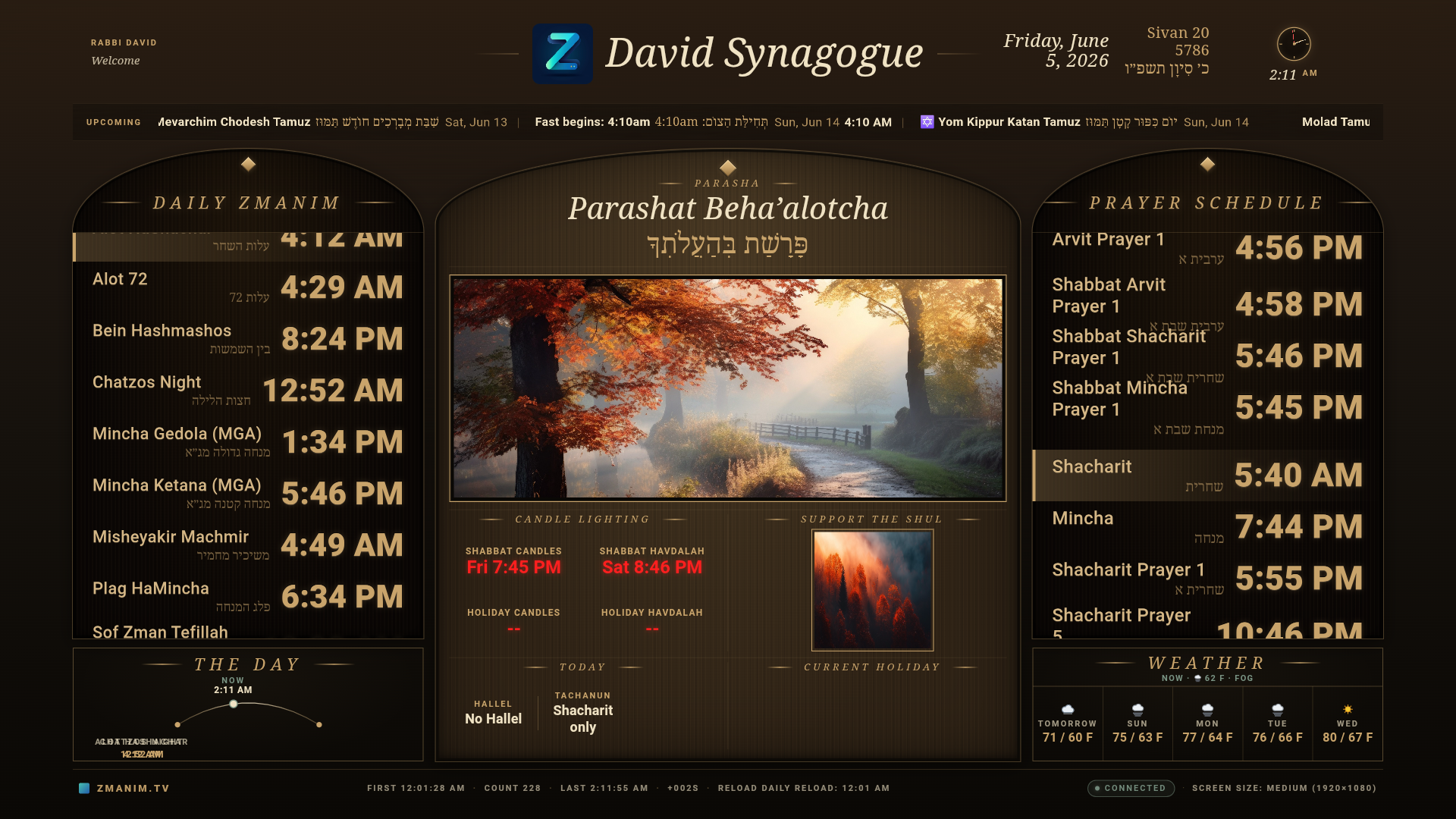
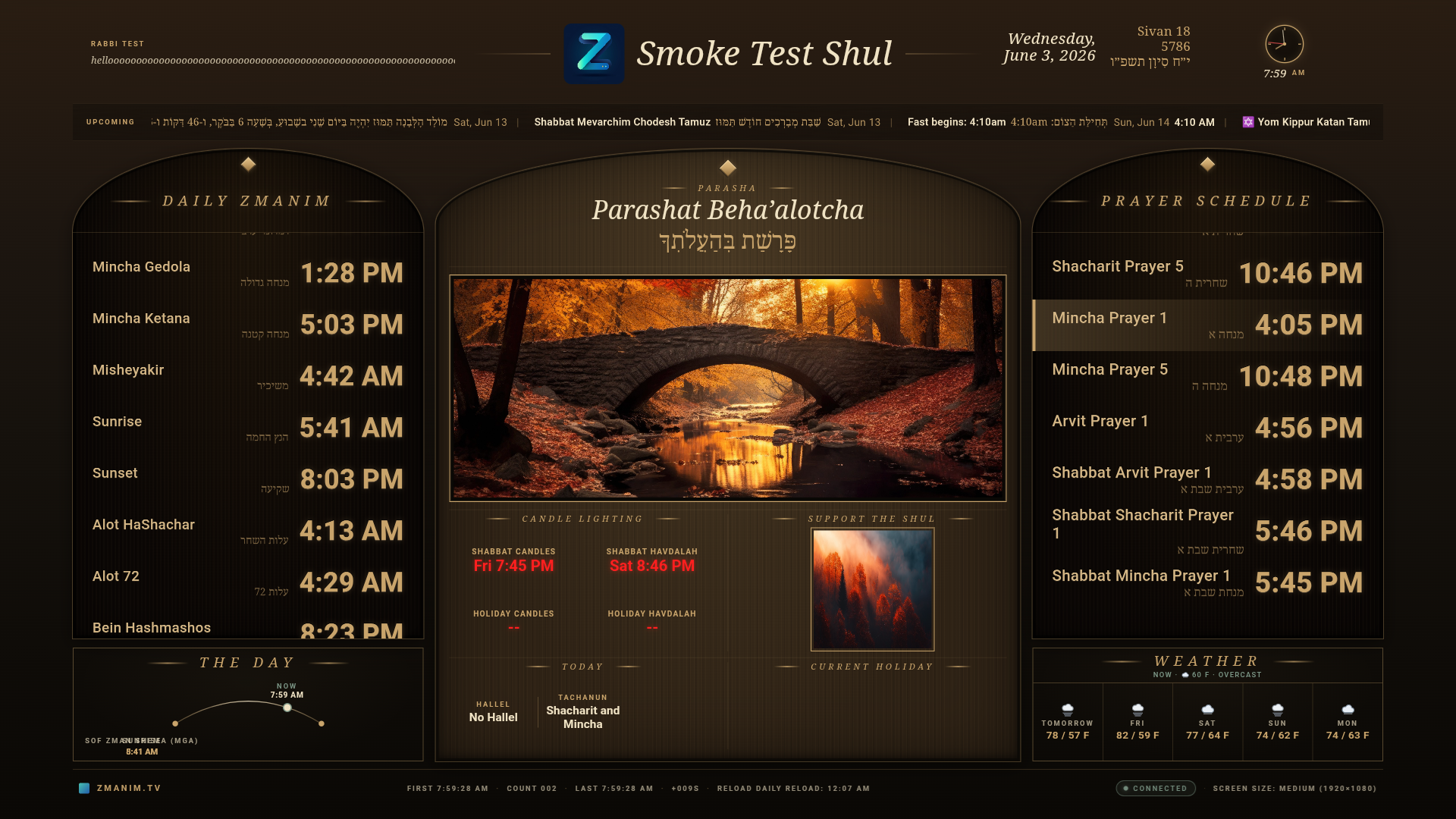
Use the TV code from your Zmanim.TV dashboard. This opens the configured synagogue display with your zmanim, weather, prayer schedule, images, logo, QR code, announcements, and settings.
Free postal-code screen
Choose United States, Canada, or Israel and enter a postal code or alert-zone location. This opens an instant unregistered screen for testing before full setup.
Auto-start on power-on
Make the screen return after a restart or power cut.
For automatic recovery after a restart or power cut, use Google TV / Android TV. Android usually needs one permission called Display over other apps. We recommend Google TV when autostart matters.
Android TV / Google TV autostart
Open Zmanim.TV once and pair the screen.
When prompted, choose Open Settings.
Go to Settings > Apps > Special app access > Display over other apps.
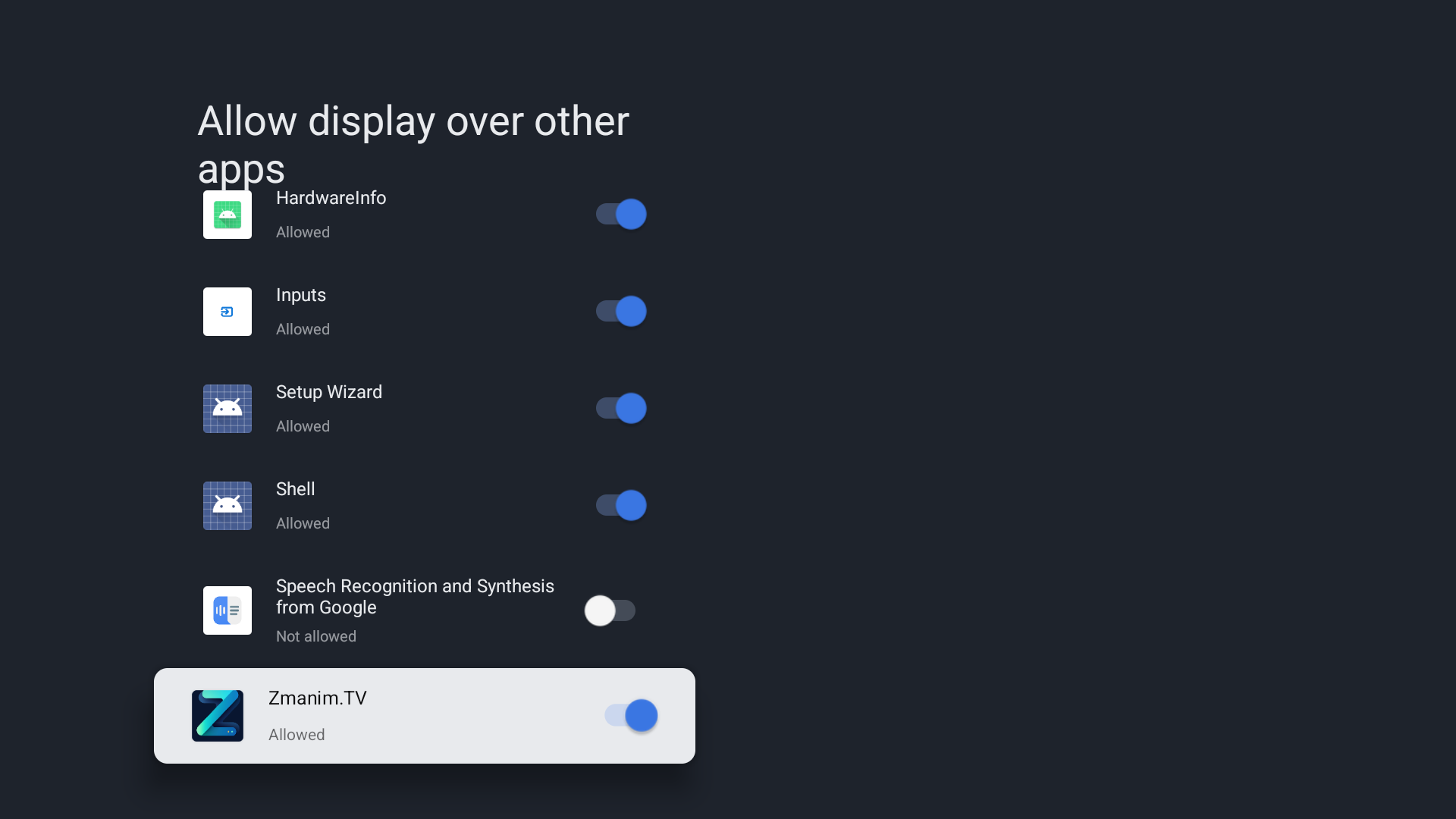
Find Zmanim.TV and set it to Allowed.
Restart the TV. Zmanim.TV should open by itself after the device powers back on.
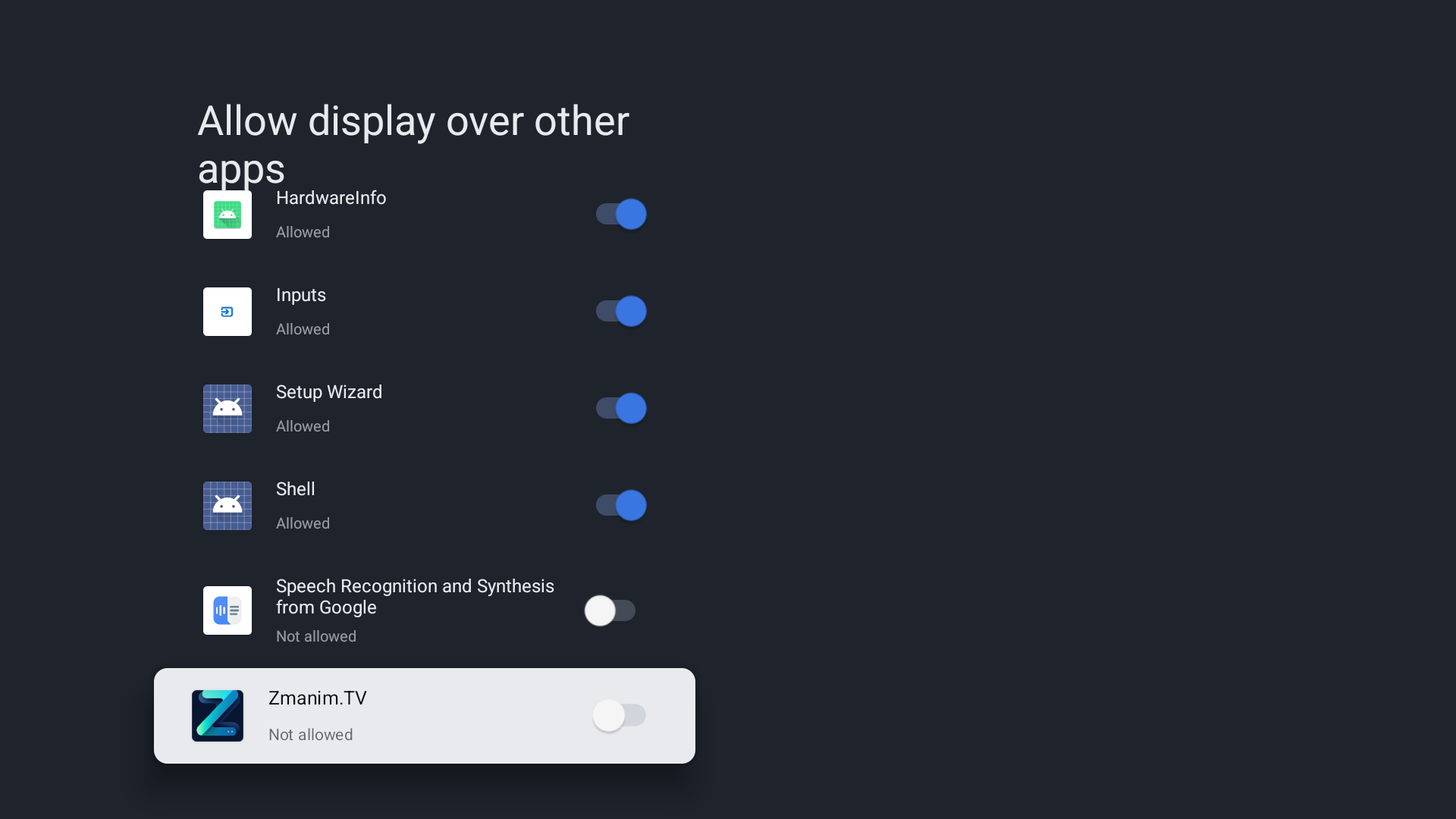
Android TV: Zmanim.TV allowed under Display over other apps.
If needed, scroll until you find Zmanim.TV, then open it and allow the permission.
Extra Android TV notes
Some TCL and Google TV boxes also have Quick Start or a manufacturer Auto-start manager. Turn those on for Zmanim.TV if present.
The app asks for this permission only during setup. A paired display should not be interrupted by the prompt.
If autostart fails after a power cut, recheck this permission first, then restart the TV again.
Recommendation: choose Google TV / Android TV for displays that need to come back automatically after power loss. Fire TV is supported for the app experience, but we do not currently provide Fire TV autostart setup.
Run 24/7
Keep the display awake.
Android TV
While Zmanim.TV is on screen, the app keeps the display awake and avoids normal app-level sleep. For permanent signage, also disable TV energy-saving settings that turn the HDMI/display off overnight.
Fire TV
Fire OS can show system-level inactivity prompts on consumer devices. Fire TV is supported through the Amazon Appstore, but for unattended 24/7 signage with autostart after power loss, we recommend Google TV / Android TV instead.
Troubleshooting
Common setup checks.
It did not auto-start
Confirm the screen is paired, then verify Android TV has Zmanim.TV allowed under Display over other apps. Restart the TV after changing the setting.
App not visible in Google Play
Open the Zmanim.TV listing and check that your TV uses a compatible Google Play account and device. If it still does not appear, contact support.
Wrong location or times
Re-pair using the correct TV code or free postal-code location. Registered screens should be adjusted from the dashboard.
Need help choosing the right setup?
Use Android TV or Fire TV for a dedicated signage player. Use the browser route when you already have a computer or smart TV browser connected to the screen.